Connecting FRANK to your restaurant website: book online with no hassle
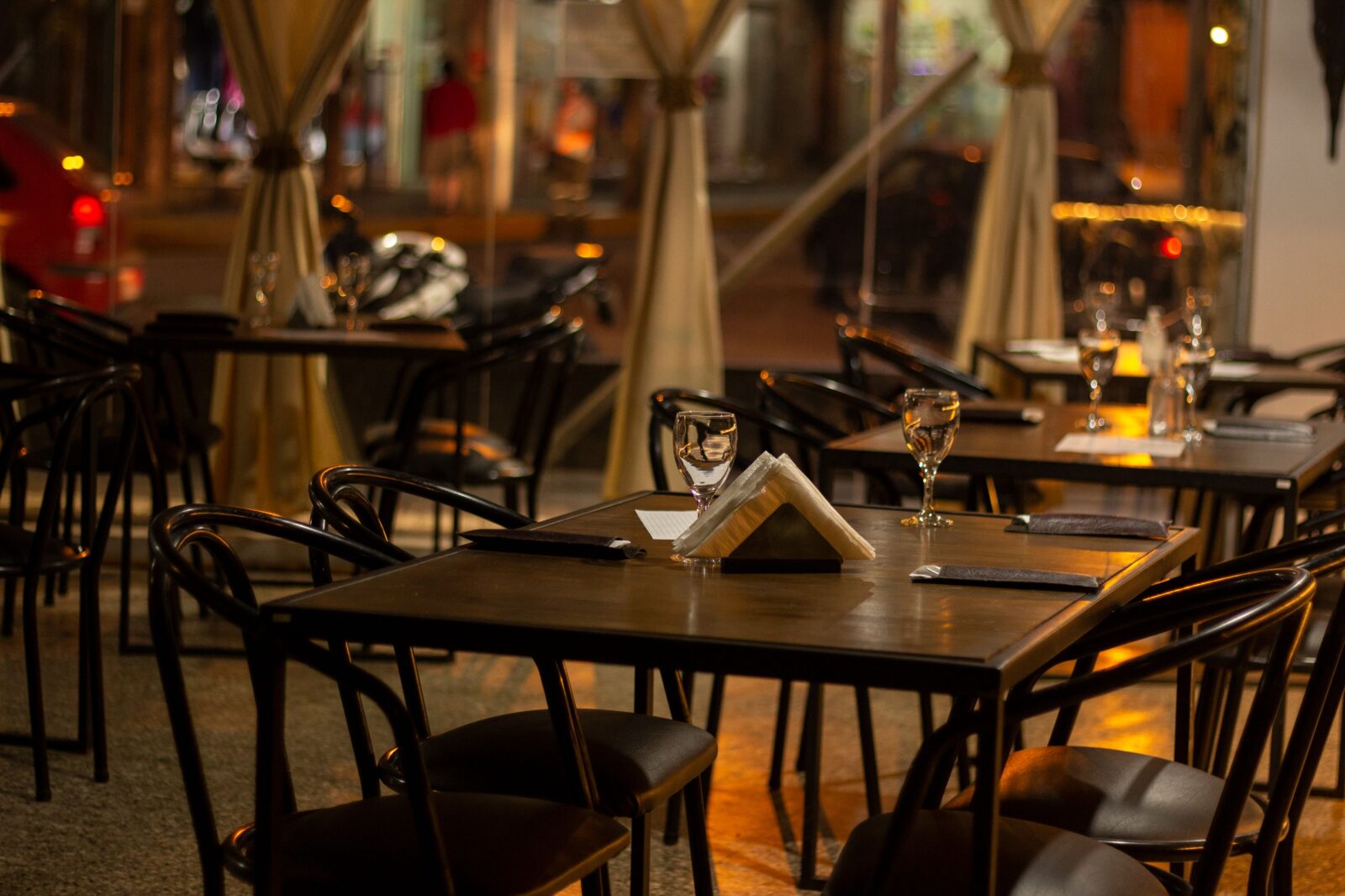
You’re running FRANK for your bookings and payments, and it works well. But guests who find you via Google, Instagram or a friend’s tip land on your website first. And that’s exactly where it gets tricky: booking happens somewhere else, behind a separate link or only after a phone call. Every extra step costs you bookings. In this article you’ll read how to place the FRANK widget directly on your Sitebite website, so guests book without leaving your site.
Why show FRANK on your own website?
A guest who’s on your site is already half convinced. That’s exactly the moment to make booking as easy as possible. Send them instead to a separate booking page that looks completely different, and some will drop off. By showing the FRANK booking screen on your own site, the guest books in a familiar environment, with your own house style around it. Fewer barriers means more completed bookings and a more professional impression.
The good part: you don’t change anything about FRANK itself. Your floor plan, your settings and your guest data stay exactly as they are. Sitebite just makes sure the FRANK widget appears neatly on your website.
What you need
- An active FRANK account with a configured widget.
- A published Sitebite restaurant website. Don’t have one yet? Read building a restaurant website with no coding first.
- Your Restaurant ID from FRANK (or the full widget code, from which Sitebite extracts the ID automatically).
Step 1: Set up your FRANK widget
Always start in FRANK, since that’s where you determine how the widget looks and behaves. Set the colour under Manage → Restaurant; the behaviour, language and toolbar under Manage → Widget. Have a multilingual site? Set the widget language to “Automatic”, so it follows your guest’s language. More details are in the FRANK Help Center.
Step 2: Find your Restaurant ID
In FRANK, go to Manage → Widget → Copy Code. That code contains your Restaurant ID, recognisable after data-restaurant-id. You don’t need to look up the ID manually: you can also paste the whole code into Sitebite, and the correct ID will be extracted automatically.
Step 3: Connect FRANK in Sitebite
- Log in to your Sitebite dashboard and choose the website where FRANK should appear.
- Go to Integrations → FRANK.
- Paste your Restaurant ID or the full widget code into the field.
- Choose whether the widget opens automatically on desktop and on mobile.
- Click Save.
Done. The FRANK widget is now live on your site.
What your guests see
Once the connection is active, the FRANK booking screen appears on every page of your website. A “Book” button appears in your navigation that opens the widget instantly, and a “Book a table” button appears at the top of your homepage. So the guest never has to scroll or search anywhere: booking is always one tap away.
Tips for more bookings
- Put “Book” prominently in your menu bar, so the button is instantly visible on every page.
- Test your site on your phone. Many guests book on the go, so check that the widget works nicely on mobile.
- Consider a deposit or guarantee in FRANK to reduce no-shows.
- Have a multilingual site? Set the widget language in FRANK to “Automatic”.
- Check in Sitebite Analytics how many visitors click the booking button and how many of them complete a booking, so you know exactly how well the widget converts.
Frequently asked questions
Can I combine FRANK with another booking system on one site?
Sitebite shows one booking provider in your navigation. If you use, say, Formitable or Guestplan alongside FRANK, one takes precedence. You’ll find an overview of all connections in Connecting online bookings to your website.
Do I need to paste the code again if I change something in FRANK?
No. If you adjust the colour, language or behaviour in FRANK, those changes are automatically reflected in the widget on your site. You only need to paste again if your Restaurant ID changes.
Does the widget also work on my mobile site?
Yes. The widget works on both desktop and mobile, and you can set per device whether it opens automatically.
Where do I set the colour of the booking button?
You set the widget’s colour and look in FRANK (Manage → Restaurant). In Sitebite, you configure the connection and the opening behaviour.
Get started
With FRANK on your own website, you turn visitors into guests just that bit more often, with no need to change anything about your familiar way of working. Check out the full FRANK integration for all the details, or browse all available integrations to see what else you can connect to your site. Don’t have Sitebite yet? Try it for free and get your restaurant online in a few steps.


